Avatar with External Agent
Overview
This example demonstrates how to use an external agent to control an avatar in a LiveKit room.
In this context, “external agent” means that the agent is not assembled using the LiveKit agent framework. It does not mean that an LLM is integrated via plugin or api. If you integrate services such as STT, LLM, TTS, etc. as a LiveKit plugin, it is a LiveKit Agent. Please read LiveKit Agent with Avatar instead for more information.
It uses LiveKit Ingress to connect any external agent to the avatar.
Prerequisites and Hardware Requirements
- Credentials for LiveKit.io or your own local LiveKit server (see LiveKit Server for more information)
- GPU instance with CUDA 12, OpenGL support and NVIDIA drivers (including graphic drivers) with at least 6GB of VRAM (each Avatar needs about 2.5GB VRAM. We tested on Ampere, Ada Lovelace and Blackwell architecture)
- Installed Docker with NVIDIA Container Toolkit
- Downloaded Avatar-File (e.g.
AVATAR_ID.hvia)
If you don't have an avatar file, please contact us at dev@avaluma.ai.
1. Setup Project
- Clone our example project from GitHub.
- Go to livekit directory
cd livekit - Rename
.env.exampleto.env.localand add your LiveKit credentials. - Copy Avatar file (
AVATAR_ID.hvia) to./assetsdirectory.
2. Assamble Agent
The following file from the src/agents folder contains the LiveKit agent and the configuration for the avatar. Familiarize yourself with the structure of the file so that you can make any desired changes. The basic structure of the file is based on LiveKit's agent-starter-python project. Parts relevant to the avatar are highlighted.
import os

from avaluma_livekit_plugin import LocalAvatarSession
from dotenv import load_dotenv
from livekit.agents import (
    JobContext,
    WorkerOptions,
    cli,
)

load_dotenv(".env.local")
agent_name = os.getenv("AGENT_NAME", "")
avatar_id = os.getenv("AVATAR_ID", "2025-09-06-Kadda_very_long_DS_v2_release_v5_gcs")
license_key = os.getenv("LICENSE_KEY", "")


async def entrypoint(ctx: JobContext):
    # Add any other context you want in all log entries here
    ctx.log_context_fields = {
        "room": ctx.room.name,
    }

    avatar = LocalAvatarSession(
        license_key=license_key,
        avatar_id=avatar_id,  # Avatar identifier (for AVATAR_ID.hvia)
        assets_dir=os.path.join(os.path.dirname(__file__), "..", "assets"),
    )
    await avatar.start(room=ctx.room)

    await ctx.connect()


if __name__ == "__main__":
    cli.run_app(
        WorkerOptions(
            entrypoint_fnc=entrypoint, job_memory_warn_mb=4096, agent_name=agent_name
        )
    )
The avatar is currently in beta and may not work as expected. Please report any issues you encounter.
Further it's currently running without the need of an license key, but the usage is limited. Please contact us for more information.
3. Start Avatar
- Update
AVATAR_IDindocker-compose.ymlfor the serviceexternal-agent-with-avatar. The value should match a name of one of your avatar files in theassetsdirectory. (e.g.AVATAR_ID.hvia) - Run
docker compose up external-agent-with-avatar
4. Test Agent with LiveKit Playground
- Open the LiveKit Agent Playground to test your agent.
- Select your project when using LiveKit Cloud or enter your LiveKit Credentials when using LiveKit Self-Hosted.
- Type in the value of
AGENT_NAMEfromdocker-compose.yamlto theAgent namefield.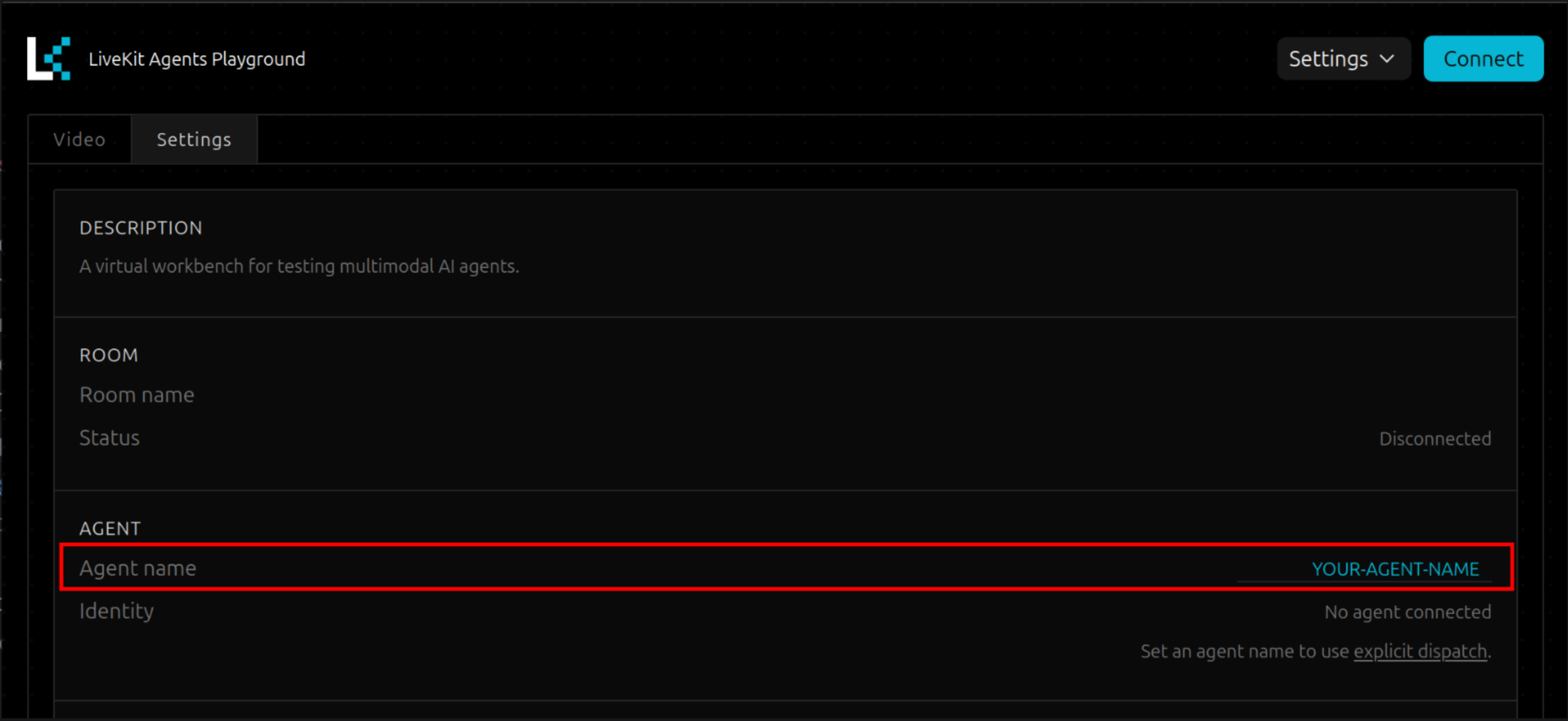
- Click
Connect
When changing the value of the agent_name field in the LiveKit Agent Playground, it could be possible to reload the page to make changes working.
Even if the playground visualizes microphone input, the avatar will not react to it. In this Mode the avatar is listening to audio from your external agent.
5. Using Audio from a Non-LiveKit-Agent to Contriol the Avatar
LiveKit provides various ways to integrate external audio into a LiveKit room.
Regardless of which method you choose, it is important that participant_identity is specified as external-agent-ingress. The avatar plugin mutes the direct audio stream from this participant for the client and forwards it to control the avatar. The audio is then played synchronously with the avatar at the client.
src/test/test-rtc-input.py provides an application that generates an RTC stream and feeds it into the LiveKit room as participant_identity "external-agent-ingress". The application can be easily tested with Docker.
- run
docker compose run -it test-rtc-input - copy the
room namefrom the livekit playground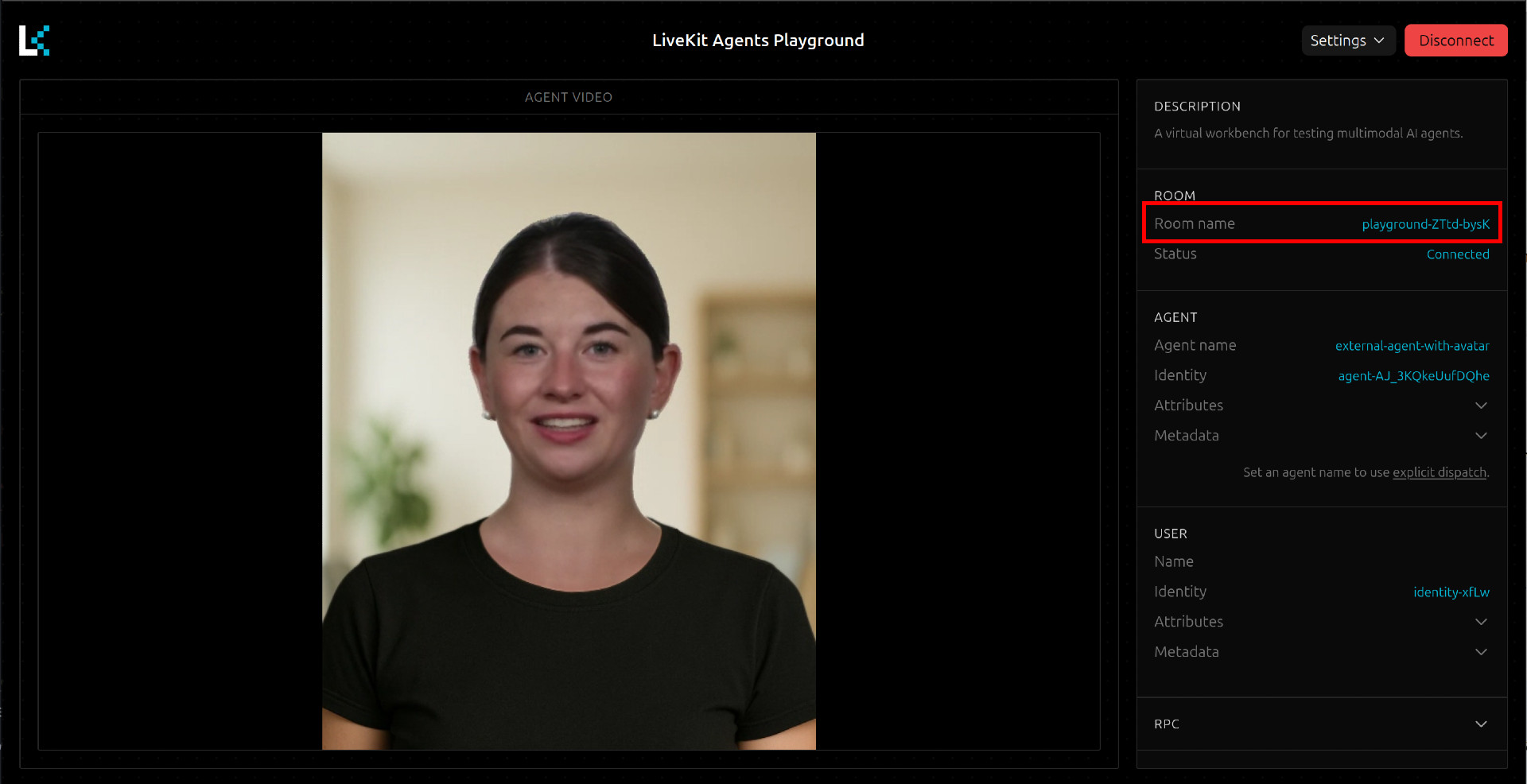
- Follow the instructions in terminal (Pasting the room name, Press Enter for play, etc.)