LiveKit Agent with Avatar
Overview
This page shows how to setup and test a simple avatar agent with the LiveKit Agent Framework and Avaluma avatar.
Prerequisites and Hardware Requirements
- Credentials for LiveKit.io or your own local LiveKit server (see LiveKit Server for more information)
- GPU instance with CUDA 12, OpenGL support and NVIDIA drivers (including graphic drivers) with at least 6GB of VRAM (each Avatar needs about 2.5GB VRAM. We tested on Ampere, Ada Lovelace and Blackwell architecture)
- Installed Docker with NVIDIA Container Toolkit
- Downloaded Avatar-File (e.g.
AVATAR_ID.hvia)
If you don't have an avatar file, please contact us at dev@avaluma.ai.
1. Setup Project
- Clone our example project from GitHub.
- Go to livekit directory
cd livekit - Rename
.env.exampleto.env.localand add your LiveKit credentials. - Copy Avatar file (
AVATAR_ID.hvia) to./assetsdirectory.
2. Assamble Agent
The following file from the src/agents folder contains the LiveKit agent and the configuration for the avatar. Familiarize yourself with the structure of the file so that you can make any desired changes. The basic structure of the file is based on LiveKit's agent-starter-python project. Parts relevant to the avatar are highlighted.
livekit.agent.inference is only available when using LiveKit Cloud.
For the self-hosted version stt, llm and tts have to be replaced with Model Plugins.
import os

from avaluma_livekit_plugin import LocalAvatarSession
from dotenv import load_dotenv
from livekit.agents import (
    Agent,
    AgentSession,
    JobContext,
    JobProcess,
    RoomInputOptions,
    RoomOutputOptions,
    WorkerOptions,
    cli,
    inference,
)
from livekit.plugins import noise_cancellation, silero
from livekit.plugins.turn_detector.multilingual import MultilingualModel

load_dotenv(".env.local")
agent_name = os.getenv("AGENT_NAME", "")
avatar_id = os.getenv("AVATAR_ID", "2025-09-06-Kadda_very_long_DS_v2_release_v5_gcs")
license_key = os.getenv("AVALUMA_LICENSE_KEY", "")


class Assistant(Agent):
    def __init__(self) -> None:
        super().__init__(
            instructions="""You are a helpful virtual AI assistant. The user is interacting with you via voice, even if you perceive the conversation as text.
            You eagerly assist users with their questions by providing information from your extensive knowledge.
            Your responses are concise, to the point, and without any complex formatting or punctuation including emojis, asterisks, or other symbols.
            You are curious, friendly, and have a sense of humor.""",
        )


async def entrypoint(ctx: JobContext):
    ctx.log_context_fields = {
        "room": ctx.room.name,
    }

    session = AgentSession(
        stt=inference.STT(model="assemblyai/universal-streaming", language="en"),
        llm=inference.LLM(model="openai/gpt-4.1-mini"),
        tts=inference.TTS(
            model="cartesia/sonic-3", voice="9626c31c-bec5-4cca-baa8-f8ba9e84c8bc"
        ),
        turn_detection=MultilingualModel(),
        vad=ctx.proc.userdata["vad"],
        preemptive_generation=True,
    )

    avatar = LocalAvatarSession(
        license_key=license_key,  # Your License Key
        avatar_id=avatar_id,  # Avatar identifier (Name of .hvia file)
        assets_dir=os.path.join(os.path.dirname(__file__), "..", "assets"),
    )
    # Start the avatar and wait for it to join
    await avatar.start(agent_session=session, room=ctx.room)

    await session.start(
        agent=Assistant(),
        room=ctx.room,
        room_input_options=RoomInputOptions(
            noise_cancellation=noise_cancellation.BVC(),
        ),
        room_output_options=RoomOutputOptions(audio_enabled=False),
    )
    await ctx.connect()


def prewarm(proc: JobProcess):
    proc.userdata["vad"] = silero.VAD.load()


if __name__ == "__main__":
    cli.run_app(
        WorkerOptions(
            entrypoint,
            prewarm_fnc=prewarm,
            job_memory_warn_mb=4096,
            agent_name=agent_name,
        )
    )
The avatar is currently in beta and may not work as expected. Please report any issues you encounter.
Further it's currently running without the need of an license key, but the usage is limited. Please contact us for more information.
3. Start Agent
- Update
AVATAR_IDindocker-compose.ymlfor the servicelivekit-agent-with-avatar. The value should match a name of one of your avatar files in theassetsdirectory. (e.g.AVATAR_ID.hvia) - Run
docker compose up livekit-agent-with-avatar
4. Test Agent with LiveKit Playground
- Open the LiveKit Agent Playground to test your agent.
- Select your project when using LiveKit Cloud or enter your LiveKit Credentials when using LiveKit Self-Hosted.
- Type in the value of
AGENT_NAMEfromdocker-compose.yamlto theAgent namefield (e.g.livekit-agent-with-avatar).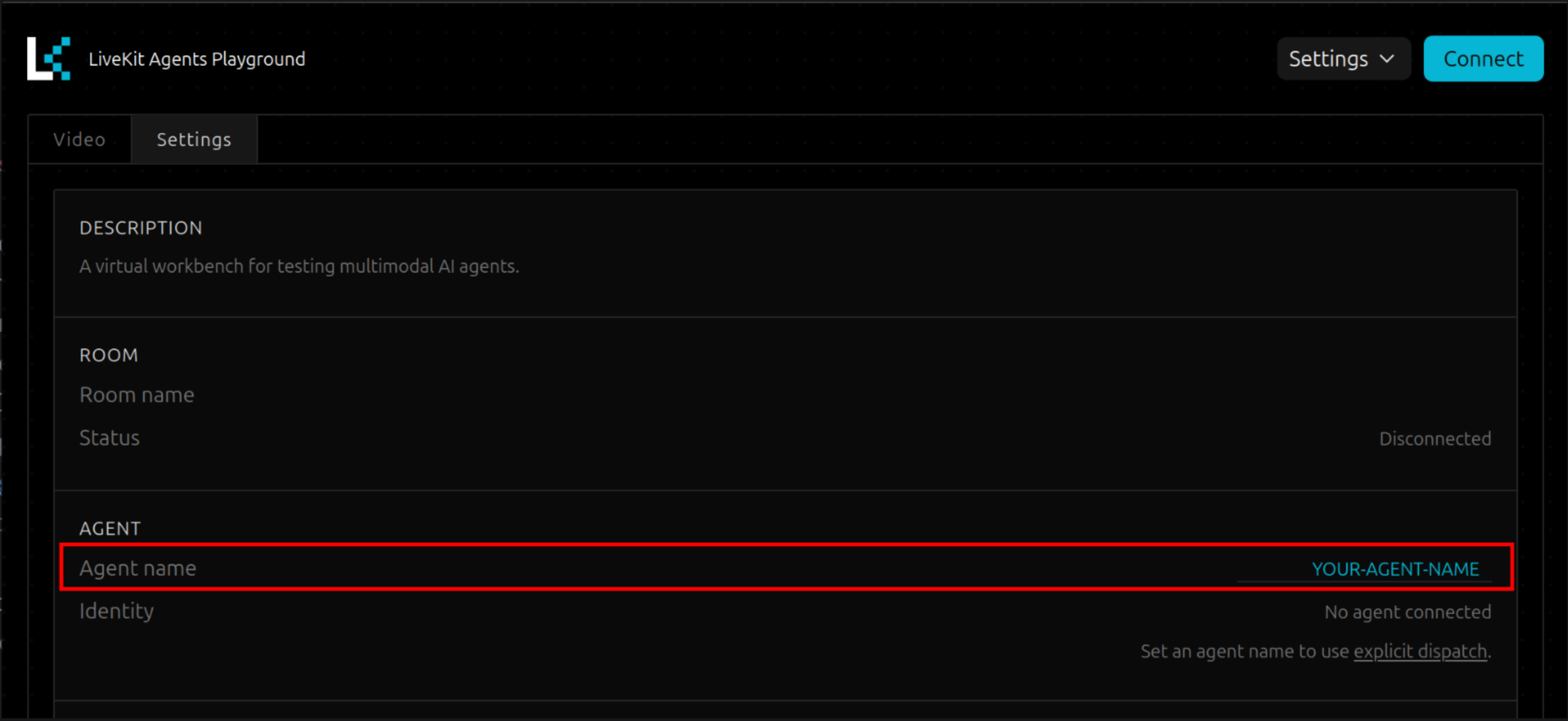
- Click
Connect
When changing the value of the agent_name field in the LiveKit Agent Playground, it could be possible to reload the page to make changes working.
Additional Resources
- Agent Starter Example from LiveKit